Showing posts with label ODBC drivers Problem. Show all posts

Friday, 19 March 2021

Error: "No ODBC system data source is defined for Oracle BI Server"

Error: 

"No ODBC system data source is defined for Oracle BI Server" When Launching The Oracle BI Administrator In Online Mode Using a Newly Created OBIEE 12c Domain.

I was attempting to launch the Oracle BI Administrator (BI Developer Client Tool) in online mode using a newly created OBIEE 12c domain, the following error occurs:

STEPS TO REPRODUCE


The following steps can be utilized to reproduce the error:

  • Browse to $BIDomain\bitools\bin
  • Launch admintool.cmd
  • Select File > Open > Online (or select the blue folder icon)
  • Note the error which occurs as mentioned above.

CAUSE


This issue is caused by a missing ODBC System DSN for the OBIEE domain installed on Windows.

When creating the domain for OBIEE 12c, if creating a new domain using the Primavera Analytics BAR file or creating the OBI domain using the "clean slate" deployment method, a System ODBC DSN is not created out of box.  When using the Administrator in online mode, this DSN is required and if not present will return the reported error.

SOLUTION

To resolve this issue, you must create a System DNS for the OBIEE domain using the following low level steps:
  1. Browse to Control Panel > Administrative Tools
  2. Click Data Sources (ODBC)
  3. In the ODBC Data Sources Administrator Screen, click System DSN
  4. Select Add...
  5. On the Create New Data Source screen, select Oracle BI Server, then Finish
  6. In the Oracle BI Server DSN Configuration:
    • Enter any name in the name field
    • Enter any description in the description field
    • Enter the servername for BI Server in the server field.
    • Select Next
    • Enter a login ID/password with Administrator role (for example, weblogic user of the OBIEE 12c domain)
    • In the Port field, enter the port number for the obis bi server process
    • By default, 9514. 
    • This can be found in Enterprise Manager:
    • Click Target Navigation icon (ss1) > Business Intelligence > biinstance > Availability > Processes tab
    • Select the Save login ID checkbox
    • Select the Connect checkbox
    • Select Next
    • Select Finish
  • Close the ODBC Data Source Administrator screen. 
  • Relaunch the Oracle BI Administrator tool and the system DSN will now be available.
Reference: docs.oracle.com

Happy Blogging.!!

Friday, 18 July 2014

Excel & OBIEE 11g on Windows - ODBC drivers Problem

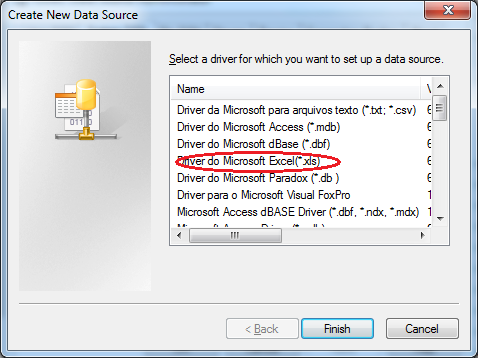
In OBIEE, you might face this issue while creating a DSN to access MS-Excel as a source database. Even if you have installed OBIEE setup, MS-Office setup successfully, etc.., you will not be able to create a DSN pointing to an Excel source on your system.

This is because, you have installed a 32 bit version of MS-Office on your 64 bit system.

A 64-bit version of the Microsoft Windows operating system includes the following versions of the Microsoft Open Database Connectivity (ODBC) Data Source Administrator tool (Odbcad32.exe):
  • The 32-bit version of the Odbcad32.exe file is located in the %systemdrive%\Windows\SysWoW64 folder.
  • The 64-bit version of the Odbcad32.exe file is located in the %systemdrive%\Windows\System32 folder.
You might be wondering.. What's this stuff?? :-) Let me try to clear you these things. 

With the Odbcad32.exe file from %systemdrive%\Windows\System32, you are not able to create a DSN for any Excel file. There will be no any drivers for Excel data source.

Unlike this, with the Odbcad32.exe file from %systemdrive%\Windows\SysWoW64, you will be able to create a DSN for Excel pointing to your source excel file. 

But you will not be able to access this DSN through BI Admin Tool.

So, to overcome with this issue, we need to install 64-bit Microsoft Access components?
You can download this component from this link, (Download 64 bit)

Install this file,


But still, didn't went well..!! Don't worry.. :-)

Use the /passive parameter to force install of the 64-bit ODBC drivers:

Open your command prompt, & go to the downloaded folder, and type the following command.

Now open Odbcad32.exe file from %systemdrive%\Windows\System32 location, you are ready to create DSN for excel source file.

Create one sample DSN,

Make sure, this DSN is available in Admin Tool also to import data from source file mentioned in that DSN.

Sucess..!! :-)